Scheduling
Recurring transactions
Set rent, salary, Netflix, and gym fees up once. Flow records them on schedule, every time.
Where it lives
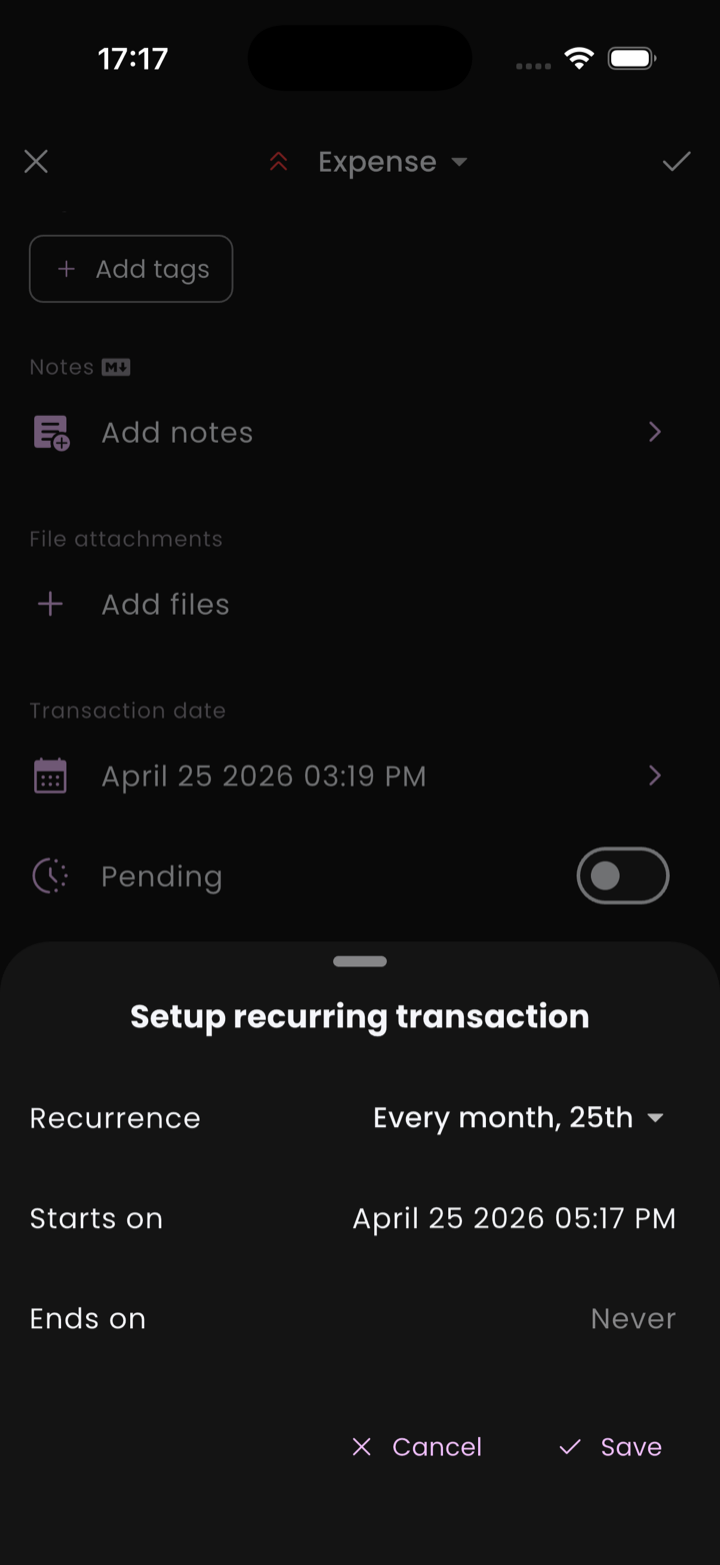
Recurrence isn't a separate screen — it's a section on the transaction itself. Open any transaction (or create a new one), scroll down past the basic fields, and you'll see a Recurrence section. Tap Recurrence setup to open the schedule editor.
The transaction you set this on becomes a template. Flow uses it to generate copies on the schedule you choose.
💡 Let Flow spot them
Picking a schedule
The setup sheet offers presets for the common cases:
- Every day
- Every week
- Every 2 weeks
- Every month
- Every year
And three ways to end the rule:
- Never — runs forever (until you turn it off).
- On a date — the rule stops after that date.
- After N occurrences — Flow shows you the total it'll generate.
How generation works
Flow doesn't pre-generate every future occurrence. When you open the app, it walks the rule forward and creates transactions up through today, plus exactly one occurrence in the future. That single look-ahead is the same regardless of how far behind the rule is — whether it owes you 1 occurrence or 10, you only ever see at most one future-dated transaction at a time.
The next future occurrence is generated only after the current future one moves into the past (i.e. its date arrives). So a monthly rule keeps exactly one upcoming occurrence visible at any given moment.
What happens to those generated transactions depends on a setting in Profile → Preferences → Pending transactions:
- If Require confirmation is on, the future-dated look-ahead lands as a pending transaction you'll need to approve when its date comes.
- If it's off, the look-ahead is confirmed automatically as soon as its date arrives.
Past and present occurrences (the catch-up backlog) follow the same rule — they're confirmed or pending depending on that setting.
ℹ️ Catch-up generation
Bills that vary New in v0.25.0
Electricity, water, a phone plan with overages — some bills arrive on schedule but never for the same amount. For those, turn on Amount varies right under the schedule in the Recurrence section.
- Every occurrence lands as a pending transaction with an estimate, shown with a "~" (like ~$42). This happens even if Require confirmation is off.
- When the bill arrives, tap Confirm. Flow asks for the actual amount first, then records it.
- The estimate is the last amount you confirmed for that rule. Until there is one, it's the amount on the original transaction.
Recurring transfers can vary too. You enter the amount leaving the source account, and the other side follows the transfer's conversion rate.
Editing the rule
Editing the recurring transaction changes the template for future occurrences only. Already-generated transactions in your history keep their original values, so a rent increase doesn't silently rewrite the past.
Stopping a rule
To stop a rule, open the source transaction and either:
- Set the recurrence end date to today (or a date in the past).
- Remove the recurrence entirely from the transaction.
- Delete the source transaction — past generations are kept; no new ones run.
Recurring transfers
Transfers can recur too. Set up a transfer between two of your accounts, then add a recurrence to it — Flow will duplicate the transfer on schedule. Useful for automatic monthly savings deposits.
Seeing what's coming
The Recurring tile under Insights on the Stats tab lists upcoming recurring charges and how much is already committed. Totals that include an estimate for a varying bill are marked with a "~".